How to Change Your Snapchat Username in 2026: A Detailed Guide
For a long time, Snapchat users were stuck with the usernames they picked when they first joined the app. Whether it was an embarrassing childhood nickname or a random string of numbers, there was no way to change it without deleting the entire account.
However, Snapchat finally listened to its community and introduced a feature that allows users to refresh their identity. In this guide, we will show you exactly how to change your Snapchat username in 2026 without losing your friends, streaks, or memories.
Important Things to Know Before You StartBefore you jump into the settings, there are a few crucial rules you must keep in mind: * The Once-a-Year Rule: You can only change your Snapchat username once every 12 months. Choose wisely, as you’ll be stuck with it for a full year.
* No Backtracking: Once you change your username, your old one is gone forever. No one else can claim it, and even you cannot switch back to it.
* Display Name vs. Username: Remember that your “Display Name” (what people see in chats) can be changed as many times as you like. Your “Username” is your unique ID used for searching.
Step-by-Step Instructions to Change Your UsernameFollow these simple steps to update your Snapchat identity:
Step 1: Open Your ProfileLaunch the Snapchat app and tap on your Bitmoji or Profile icon in the top-left corner of the camera screen. This will take you to your Profile page.
Step 2: Access SettingsOnce on your profile page, look for the Gear Icon (Settings) in the top-right corner and tap on it.
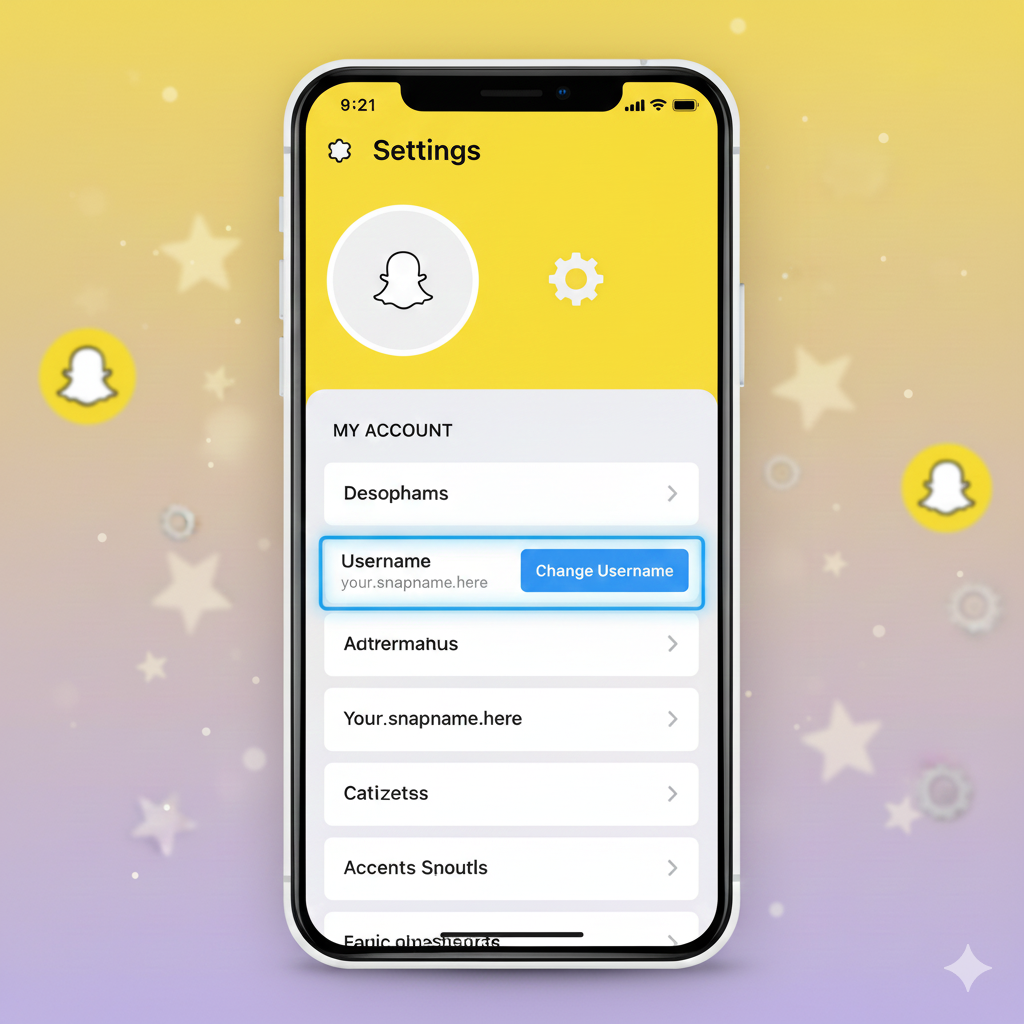
Step 3: Locate the Username TabUnder the “My Account” section, you will see your current Username. Tap on it to open the username management screen.
Step 4: Initiate the ChangeYou will see a blue button that says “Change Username.” Tap it. A pop-up will appear reminding you that you can only do this once a year. Tap “Continue” to proceed.
Step 5: Enter Your New UsernameType in your desired new username. Snapchat will automatically check if the name is available. If it’s taken, try adding a few numbers or underscores. Once you find an available one you like, tap “Next.”
Step 6: Verify with PasswordTo ensure security, Snapchat will ask you to enter your account Password. This confirms that you are the actual owner of the account making the change. Enter it and tap “Confirm.”
Step 7: Final ConfirmationA final message will appear saying “Your username has been updated successfully.” Tap “Okay,” and you are all set.
ConclusionUpdating your Snapchat username is a great way to keep your profile professional or simply more aligned with your current personality. Just remember the one-year limit! Now go ahead, share your new username with your friends, and keep those streaks going.
#SnapchatTips #ChangeUsername #SnapchatUpdate #SocialMediaTricks #SnapchatTutorial #TechGuide2025 #SnapchatUsername #ProfileCustomization #SnapchatHacks