How to Delete Your Snapchat Account Permanently in 2026: A Complete Guide
Whether you are looking for a digital detox, moving to a different social media platform, or simply want to clear your online presence, deleting your Snapchat account is a straightforward process. However, Snapchat doesn’t make the option immediately obvious within the main settings. In this guide, we will walk you through the correct steps to deactivate and permanently delete your Snapchat account in 2026.
What Happens When You Delete Your Account?
Before you proceed, it is important to understand the two-stage process: Deactivation (First 30 Days):
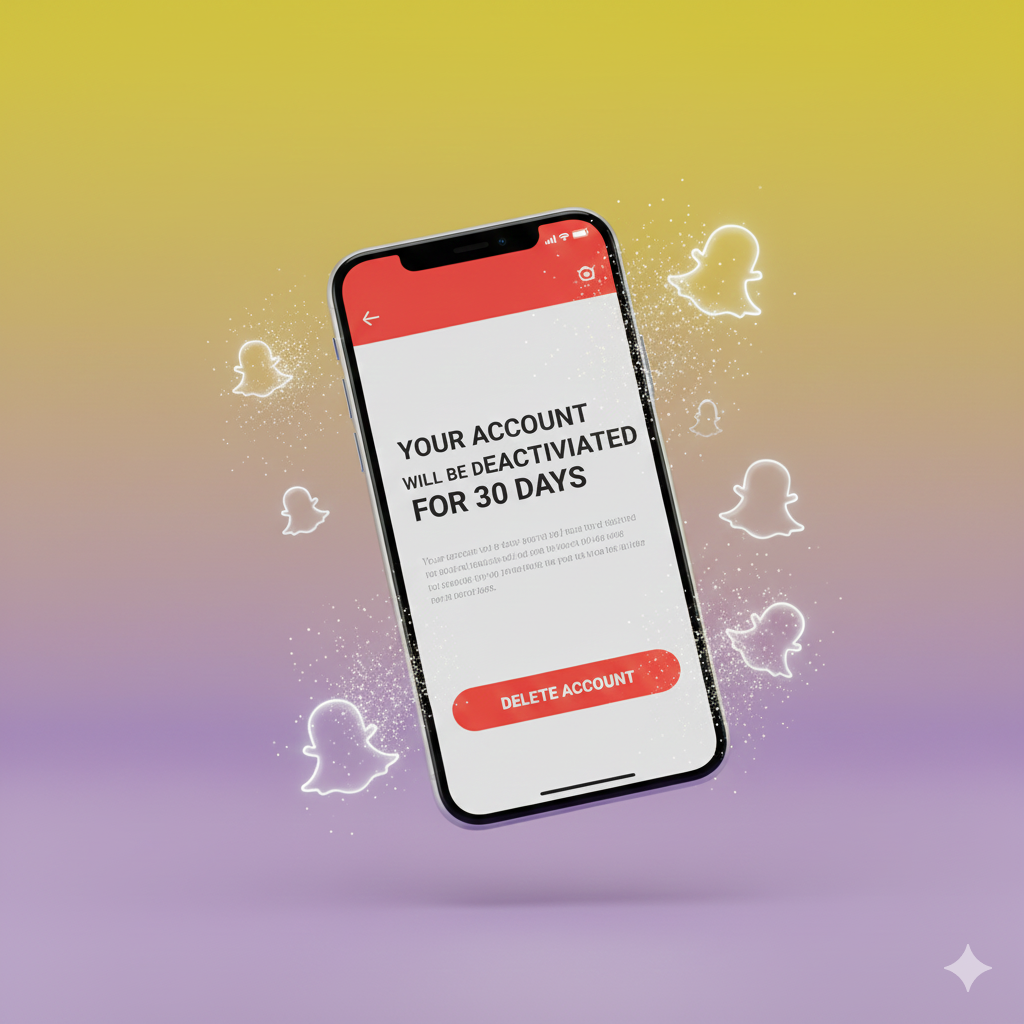
Your account will first be deactivated. Your friends won’t be able to contact or interact with you, and you will disappear from searches.
Permanent Deletion (After 30 Days): If you do not log back in during the 30-day deactivation period, Snapchat will permanently delete your account, including your snaps, memories, chats, and friends.
How to Delete Your Snapchat Account (Step-by-Step)
Since the process is slightly different for Android and iOS, we have covered both:
Method 1: Using the Snapchat App (Android & iOS)Open the Snapchat app and tap on your Bitmoji/Profile icon.
Tap the Gear icon (Settings) in the top-right corner.Scroll down to the “Support” section and tap on “I Need Help.”
In the search bar at the top, type “Delete my account” and select the matching option.
Snapchat will show you an article explaining the process. Look for the “accounts portal” link within the text and tap it.
Log in with your username and password.Enter your credentials one last time to confirm and tap “Continue.”
Method 2: Using a Web Browser (PC or Mobile)If you don’t have the app installed, you can do it via any browser: Go to the official Snapchat Accounts Portal (accounts.snapchat.com).
Log in to your account.Select the “Delete My Account” option from the menu.
Follow the prompts to enter your password and confirm.
Pro Tip: Download Your Data First!If you have years of Memories (photos and videos) saved on Snapchat, we highly recommend downloading them before you delete your account.
Go to Settings > My Data and request a download link for all your files.
How to Cancel Deletion?
Changed your mind?
Simply log back into the Snapchat app using your username and password within the 30-day window. It may take up to 24 hours for the account to reactivate fully.
#DeleteSnapchat #SnapchatAccount #DigitalDetox #PrivacyTips #SnapchatTutorial #TechGuide #AccountDeletion #SocialMediaCleanUp #Snapchat2025